Corthex · WordPress / JavaScript
One assistant. Two installation routes.
Choose where you want to manage installation. Then separately decide whether your assistant needs a store connection. These are different decisions.
Plugin settings → public Bot ID → widget
Optional: explicit WooCommerce pairingSite template → generated snippet → widget
No automatic private store accessChoose the right responsibility
The installer is not the permission model.
Either route can display the same assistant. The plugin keeps setup in WordPress; the script fits a site template you maintain directly.
Public Bot ID only · replace the placeholder
<script src="https://www.corthex.app/widget.js"
  data-bot-id="YOUR_BOT_ID">
</script>01 / The native plugin route
Keep setup in WordPress.
Use Corthex AI when you have administrator permission to upload and activate a plugin and want a native configuration screen. Download the current ZIP, install it through Plugins → Add New → Upload Plugin and activate it. Enter the public Bot ID, review the service information, enable chat and save. A Corthex service account is needed for the assistant; a plain WordPress site does not need WooCommerce to display it.
Activation and service use are distinct
Plugin activation does not itself authorize all customer-data sharing. Enabling chat starts the external service integration; full store customer-profile sharing is separately opt-in. Review your site’s consent and privacy setup for the actual service you enable. Check the current plugin requirements against your WordPress, PHP, theme and hosting versions rather than assuming any plugin works on every installation.
Commerce needs an additional pairing
When you need native WooCommerce tools, activate WooCommerce and use Connect to Corthex. Select the intended assistant and confirm the pairing. The scoped connector token is handled by that route, without manually creating a WooCommerce REST key. The resulting own-order access still requires verified signed-in customer identity. Merely having the plugin active does not make every visitor an authenticated shopper.
02 / The generated snippet route
Keep setup in your site template.
Use the generated code when you control the template, a suitable HTML block or the site’s approved deployment process. In the assistant’s Integrations tab, choose Get Embed Code and select the presentation mode. Put a floating-widget script before the closing body tag, or place the supplied inline/full-page code in the intended area. Keep the generated options intact while changing the public Bot ID to your own assistant’s ID.
The browser gets public display settings
The snippet uses a public Bot ID. It must not contain your private API key or a store administrator credential. Your CMS may strip scripts from content blocks, and consent or content-security settings may prevent loading. Verify the published page rather than only the editor preview. A site-wide template and a page-specific code block can accidentally install competing copies, so choose one clear owner for the installation.
Display does not unlock private context
A generic embed can show the assistant’s knowledge answers without a platform-specific plugin. It does not automatically read private orders, accounts or cart contents. For those tasks, assess the relevant commerce connector or a deliberately built custom website integration with the right authorization. Do not choose the snippet expecting it to bypass the store’s customer-identity rules.
Compare ownership and maintenance, not just code length.
| Decision | WordPress | JavaScript / iframe |
|---|---|---|
| Who can install? | A WordPress administrator with plugin permission. | Someone who can publish the approved script or iframe in the site. |
| Where is it managed? | Plugin settings plus the assistant in Corthex. | Site template/code block plus the assistant in Corthex. |
| What needs updates? | Plugin compatibility, settings and the assistant’s sources. | Template placement, permitted loading and the assistant’s sources. |
| Does it grant order access? | Only with the relevant explicit commerce pairing and verified customer context. | No automatic private access; a connector/custom integration is separate. |
Check the conversation after installation.
Ask one question whose answer you can verify in an approved source. Confirm the widget opens, closes and remains usable on mobile and with a keyboard. Find the test conversation in Corthex. Then ask a question outside the source coverage and check the next step. These checks establish more than seeing a launcher icon on the page.
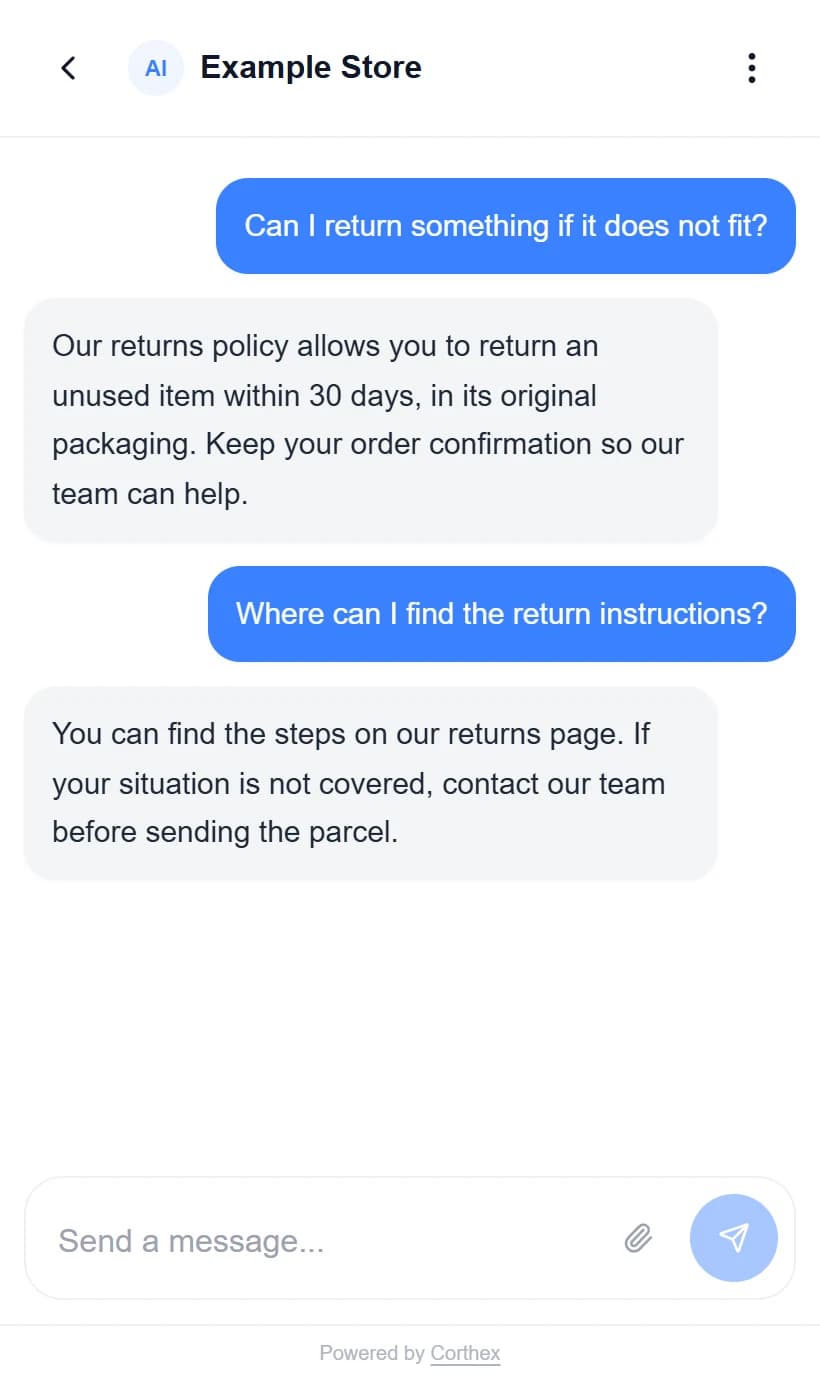
The adjacent image is the actual Corthex chat component with fictional local content. It illustrates the conversation surface, not a completed WordPress installation or live AI test. Your own acceptance record should name the installation route, versions and observed result on the actual published test page.
Use one installation owner and one repeatable check.
Before removing an existing snippet, establish which route is currently responsible for the visible widget. Check the template, plugin settings and any tag-manager deployment. Remove only the redundant route you have identified, preserve the working assistant ID and re-test the page. If nothing loads, inspect the published code and browser errors before changing the assistant’s knowledge. A content problem and a loading problem need different fixes.